

 Posts
Posts


Showing posts with label Cheryls Extra Beads. Show all posts
Showing posts with label Cheryls Extra Beads. Show all posts
Tuesday, March 13, 2012
Awareness Ribbon Beads Collection on ArtFire
I curated this collection to coincide with the addition of Awareness Ribbon Bead strands in my shop.
Click here to read more!


Awareness Ribbon Beads–My Dream Comes True
I started making Awareness Ribbon Jewelry and found that I was not too fond of the price I was paying for the beads. That’s because I am a bargain hunter and rarely pay full price for beads.
I dreamed of being able to offer Awareness Ribbon Beads to my customers at prices significantly lower than the going price.
Well, dreams do come true. I am now purchasing my beads from the factory.
Last week I received this box

and inside the big box were these little boxes

and inside the little boxes were these bags

and inside the bags were Awareness Ribbon Beads (one kilo of each color ribbon)

This is what they look like after I put them all on strands.

I have listed them in my ArtFire shop. You can see them by clicking on this link: Cheryls Extra Beads Awareness Strands. Click here to read more!
I dreamed of being able to offer Awareness Ribbon Beads to my customers at prices significantly lower than the going price.
Well, dreams do come true. I am now purchasing my beads from the factory.
Last week I received this box

and inside the big box were these little boxes

and inside the little boxes were these bags

and inside the bags were Awareness Ribbon Beads (one kilo of each color ribbon)

This is what they look like after I put them all on strands.

I have listed them in my ArtFire shop. You can see them by clicking on this link: Cheryls Extra Beads Awareness Strands. Click here to read more!
Be Seen in Green Curated by shangrilacraft on ArtFire
Be Seen in Green
Curated by shangrilacraft
Click here to read more!


Friday, March 2, 2012
Catching Up
It has been quite a long time since I last posted on this blog. The last few months of 2011 brought many changes to my life. I had a total knee replacement and I’m still recovering from it. I still go to physical therapy three times a week for about 2 hours each day. It takes up quite a bit of my time. I try to limit my activity on those days so I can concentrate my energies on my knee. As a result of this and some other changes, my online presence has dwindled to almost non-existent.
 I am trying to become as active online as I was in the past but between PT and preparing to move, it seems that I have no extra time.
That’s right, I said moving. When we moved to Nevada we knew it was a temporary home for us. Circumstances have changed and we are hoping to move back to Texas this year. I’m real excited,
 I can’t wait to be living in Texas again. We haven’t decided what area of Texas, but we are considering the Fort Worth area. Know any good bead shops in the area?
The pictures in this post are pieces I made during the last few months.
I started this post 2 weeks ago and forgot to publish it. I guess this is a case of better late than never.
See Ya Soon! Click here to read more!

That’s right, I said moving. When we moved to Nevada we knew it was a temporary home for us. Circumstances have changed and we are hoping to move back to Texas this year. I’m real excited,
 I can’t wait to be living in Texas again. We haven’t decided what area of Texas, but we are considering the Fort Worth area. Know any good bead shops in the area?
The pictures in this post are pieces I made during the last few months.
I started this post 2 weeks ago and forgot to publish it. I guess this is a case of better late than never.
See Ya Soon! Click here to read more!
Friday, September 16, 2011
ArtFire Tutorial: Items in More Than One Section Widget
If you use sections in your studio do you ever wish you could have an item in the section with like items AND have it in a special section such as a sale section.
ArtFire studios are set up so each item can only be listed in one section. I ran into a problem in my supply shop, Cheryls Extra Beads, with this limitation. I like to have a section for new listings so my customers can easily view my newest listings. The drawback is that those items don't appear in the section with the rest of the items just like them.
The way to work around the limitation is to make your own "Additional Sections" widget. You can see my widget in my studio, Cheryls Extra Beads.
First identify the new section(s) you want to set up, I’ll use "New Listings" for this tutorial.
Create a graphic to represent the section using whatever program you like. The graphic should be no more than 150 pixels wide and about half that tall. You will also need a graphic for the title "Additional Shop Sections".


Upload the graphics to Picasa, Flickr or Photobucket. Copy the link to the image, you will need that later.
Create a unique tag to use on the items that should appear in this section. I used "newlisting". Tag the items.
Go to your studio and type your tag in the search box and make sure the drop down menu reads “Search
This Shop”. Copy the url address of the search from your browser. Don’t worry if none of your items show up right away, it can take 15 to 30 minutes for an item to show up in the search once you have tagged it.
Once you have the link to your graphics and the link to your search, you are ready to create your widget.
Part 1 of the widget is the title. This does not link to a search so all you need to do is replace the image source (green text) with the link to your image.
<li><img src="https://lh4.googleusercontent.com/-_QUj76_9Zb4/TmULGtJ4bEI/AAAAAAAACZQ/jFDGwxF-W4I/s144/Addl%252520Shop%252520Sections%252520Image.jpg" height="58" width="144" /></li>
My widget has the following special sections: New Listings, Bargains, Clearance and Dollar Listings.
After I had the widget in place I decided to have a BOGO sale and it was real easy to add that section. Just repeat Part 2 for the new section and add it to the bottom of the widget already in your shop.
I welcome any questions or comments you have regarding this tutorial or any comments or suggestions regarding the widget in my shop. I moderate all comments so if you don’t want your comment published please let me know.
Click here to read more!
ArtFire studios are set up so each item can only be listed in one section. I ran into a problem in my supply shop, Cheryls Extra Beads, with this limitation. I like to have a section for new listings so my customers can easily view my newest listings. The drawback is that those items don't appear in the section with the rest of the items just like them.
The way to work around the limitation is to make your own "Additional Sections" widget. You can see my widget in my studio, Cheryls Extra Beads.
First identify the new section(s) you want to set up, I’ll use "New Listings" for this tutorial.
Create a graphic to represent the section using whatever program you like. The graphic should be no more than 150 pixels wide and about half that tall. You will also need a graphic for the title "Additional Shop Sections".


Upload the graphics to Picasa, Flickr or Photobucket. Copy the link to the image, you will need that later.
Create a unique tag to use on the items that should appear in this section. I used "newlisting". Tag the items.
Go to your studio and type your tag in the search box and make sure the drop down menu reads “Search
This Shop”. Copy the url address of the search from your browser. Don’t worry if none of your items show up right away, it can take 15 to 30 minutes for an item to show up in the search once you have tagged it.
Once you have the link to your graphics and the link to your search, you are ready to create your widget.
Part 1 of the widget is the title. This does not link to a search so all you need to do is replace the image source (green text) with the link to your image.
<li><img src="https://lh4.googleusercontent.com/-_QUj76_9Zb4/TmULGtJ4bEI/AAAAAAAACZQ/jFDGwxF-W4I/s144/Addl%252520Shop%252520Sections%252520Image.jpg" height="58" width="144" /></li>
Part 2 of the widget is your new section. Here you will need to replace the link (blue text) with the url address for the appropriate search. Then replace the image source (green text) with the link to your image.
<li><a href="http://www.artfire.com/ext/shop/studio/CherylsExtraBeads/0/0/0/augsep11"><img src="https://lh6.googleusercontent.com/-BFKsLMsoi7w/TmUJeiZGXrI/AAAAAAAACY4/5bhxkIk-lqI/s144/New%252520Listings%252520Button.jpg" height="48" width="144" /></a></li>
You will need to repeat Part 2 for each of your new sections.My widget has the following special sections: New Listings, Bargains, Clearance and Dollar Listings.
After I had the widget in place I decided to have a BOGO sale and it was real easy to add that section. Just repeat Part 2 for the new section and add it to the bottom of the widget already in your shop.
I welcome any questions or comments you have regarding this tutorial or any comments or suggestions regarding the widget in my shop. I moderate all comments so if you don’t want your comment published please let me know.
Click here to read more!
Saturday, September 10, 2011
My New ArtFire Shop Widget
The way ArtFire studios are set up each item can only be listed in one section. I ran into a problem in my supply shop with this limitation. I like to have a section of new listings so my customers can easily view my newest listings. But items in that section don't appear in the section with the rest of the items just like them.
I tried creating my own widget for all my sections but I had a mental block and just could not get it to work properly. All my items are in the appropriate ArtFire studio sections by bead type.
I added a widget for my special sections: New Listings, Bargains, Clearance and Dollar Listings.
After I had the widget in place I decided to have a BOGO sale and it was real easy to add another section to my widget.
I'm working on the tutorial so you can have additional sections. It should be out in the next day or two. In the meantime, please check out the widget in Cheryls Extra Beads. I would love to get some feedback before I write the tutorial. Just in case I decide to change it up a little. Click here to read more!
I tried creating my own widget for all my sections but I had a mental block and just could not get it to work properly. All my items are in the appropriate ArtFire studio sections by bead type.
I added a widget for my special sections: New Listings, Bargains, Clearance and Dollar Listings.
After I had the widget in place I decided to have a BOGO sale and it was real easy to add another section to my widget.
I'm working on the tutorial so you can have additional sections. It should be out in the next day or two. In the meantime, please check out the widget in Cheryls Extra Beads. I would love to get some feedback before I write the tutorial. Just in case I decide to change it up a little. Click here to read more!
Friday, August 12, 2011
700 Fan Gemstone Giveaway Winner
A funny thing happened with the drawing on my 700 Fan Gemstone Giveaway. I just can't believe it....
I used an application to host the giveaway to ensure that the winner was random. This is a screenshot of the first drawing

I know that my husband won't use the gemstones. Besides I don't want people to think the drawing was rigged. So I hit the "Re-Draw" button. And the winner is:
 Oops. I forgot to dis-qualify him. Are you sure this drawing isn't rigged?
I drew again and the real winner of the Giveaway is Michelle Berry.
Click here to read more!
Oops. I forgot to dis-qualify him. Are you sure this drawing isn't rigged?
I drew again and the real winner of the Giveaway is Michelle Berry.
Click here to read more!
I used an application to host the giveaway to ensure that the winner was random. This is a screenshot of the first drawing

I know that my husband won't use the gemstones. Besides I don't want people to think the drawing was rigged. So I hit the "Re-Draw" button. And the winner is:

Monday, August 8, 2011
Catching Up
It's been awhile since I posted so I thought I would let you know what is going on with my shops and my business.
First, I am having a 700 Fan Gemstone Giveaway on my Facebook Page. Stop by and enter to win these gemstones: I've also been going through the listings in my shop and increasing listing sizes and lowering prices.
I have even added 2 buttons to my shop sidebar.

will link to the listings in my shop that are $1.00 and
 will link to "Bargains". This includes my clearance beads as well as beads that I purchased at a significant savings.
Stop by and visit both my shops on ArtFire:
Jewelry By Cheryls Purple Cow
Cheryls Extra Beads Click here to read more!
First, I am having a 700 Fan Gemstone Giveaway on my Facebook Page. Stop by and enter to win these gemstones:
 I've also been going through the listings in my shop and increasing listing sizes and lowering prices.
 I have even added 2 buttons to my shop sidebar.

will link to the listings in my shop that are $1.00 and
 will link to "Bargains". This includes my clearance beads as well as beads that I purchased at a significant savings.
 Stop by and visit both my shops on ArtFire:
Jewelry By Cheryls Purple Cow
Cheryls Extra Beads Click here to read more!
Wednesday, June 22, 2011
And The Winner Is...
I had everything ready for the drawing. I had my random number generator, my spreadsheet with the entries and their numbers and of course, The Beads.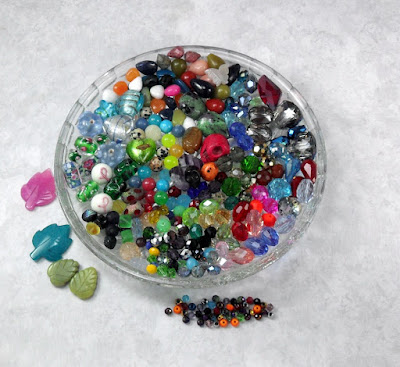
And then at 7:50.... My neighbor called. I was supposed to pick something up for her earlier and I got focused on beads and forgot. But I managed to take care of it quickly.
The Random Number Generator spit out the number 16.

and Valorie Clifton is the lucky winner.
I'll clean up this post later. I was just so excited I had to announce it right away. Click here to read more!

And then at 7:50.... My neighbor called. I was supposed to pick something up for her earlier and I got focused on beads and forgot. But I managed to take care of it quickly.
The Random Number Generator spit out the number 16.

and Valorie Clifton is the lucky winner.
I'll clean up this post later. I was just so excited I had to announce it right away. Click here to read more!
Sunday, June 19, 2011
Bead Giveaway
I’m giving away all the beads pictured to celebrate my Facebook Business Page reaching 600 fans. It’s so easy to enter this contest.
The winner will receive all the beads in these pictures:


All you have to do to enter is “Like” my page and leave a comment on the original post.
Remember to leave a link to your Facebook page on my wall so I can “Like” you back.
Want to win more beads in this contest?
If you see something in my shop that you would like added to the giveaway beads just include the title from the listing in your comment. If you include suggestions for additional giveaway beads from my shop and you are the winner, you will get additional bonus beads.
The winner will be announced on my Facebook page Wednesday June 22 at 8:00 pm PST.
Hurry over and enter now! Click here to read more!
The winner will receive all the beads in these pictures:


All you have to do to enter is “Like” my page and leave a comment on the original post.
Remember to leave a link to your Facebook page on my wall so I can “Like” you back.
Want to win more beads in this contest?
If you see something in my shop that you would like added to the giveaway beads just include the title from the listing in your comment. If you include suggestions for additional giveaway beads from my shop and you are the winner, you will get additional bonus beads.
The winner will be announced on my Facebook page Wednesday June 22 at 8:00 pm PST.
Hurry over and enter now! Click here to read more!
Monday, April 25, 2011
April 2011
I decided to publish one post at the end of the month with all the Collections featuring items from my shops.
I was in quite a few this month so I decided to break it down into 2 posts.
Thank you to eyecandychainmaille, pegasussoaps, BEAUTIFULFOREST, SimplyCatherine and RisenPhoenixDesigns for including me in your Collections.


Click here to read more!
Subscribe to:
Posts (Atom)

